For a mainstream dual-channel desktop, start by checking a single two-module kit: 2 × 32GB for 64GB or 2 × 48GB for 96GB, provided your CPU, motherboard, and BIOS support it. Filling four slots can reach the same capacity, but it increases the number of modules the memory controller must handle. Adding a second kit also introduces a compatibility question that matching the advertised speed or part number does not remove.
Four modules can still be the right choice when your platform supports the intended configuration and the capacity, cost, or existing hardware makes it worthwhile. The useful comparison is between complete supported arrangements, including the speed you can expect the platform to support and the possibility of replacing the old kit.
Work Out the Capacity Arithmetic First
| Capacity target | Two-module route | Four-module route | First question |
|---|---|---|---|
| 64GB | 2 × 32GB | 4 × 16GB | Does the platform support the selected module density? |
| 96GB | 2 × 48GB | 4 × 24GB | Does the board and BIOS support 24GB/48GB DDR5 modules? |
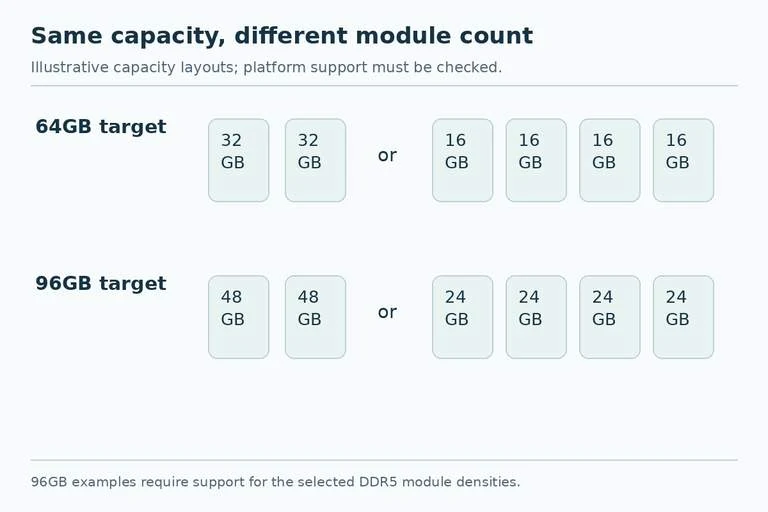
The 96GB examples here concern supported DDR5 configurations. They are not instructions to buy DDR5 for a DDR4 motherboard. CORSAIR identifies 24GB and 48GB DDR5 modules as ways to reach these capacities, including 96GB with two modules.
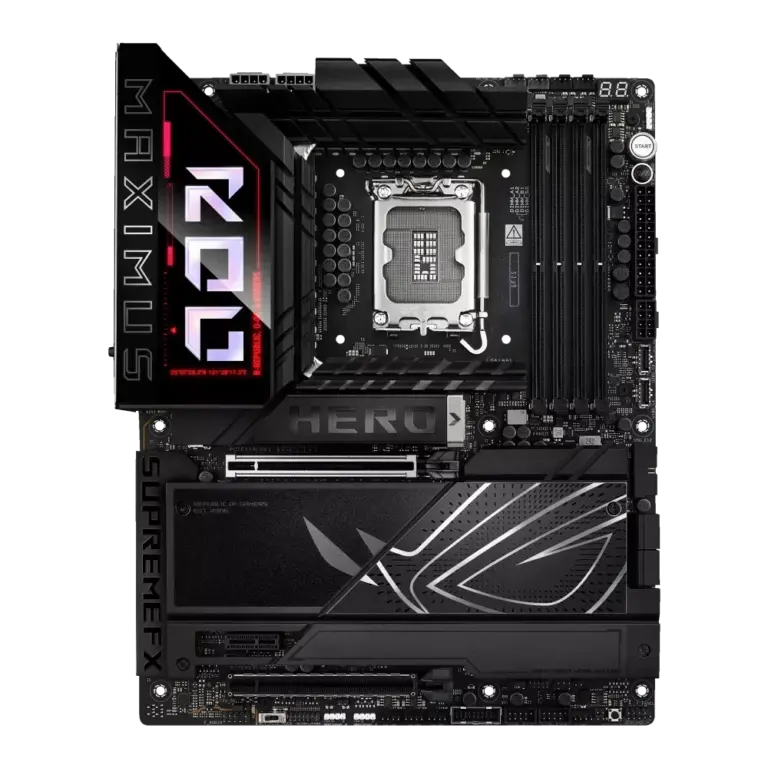
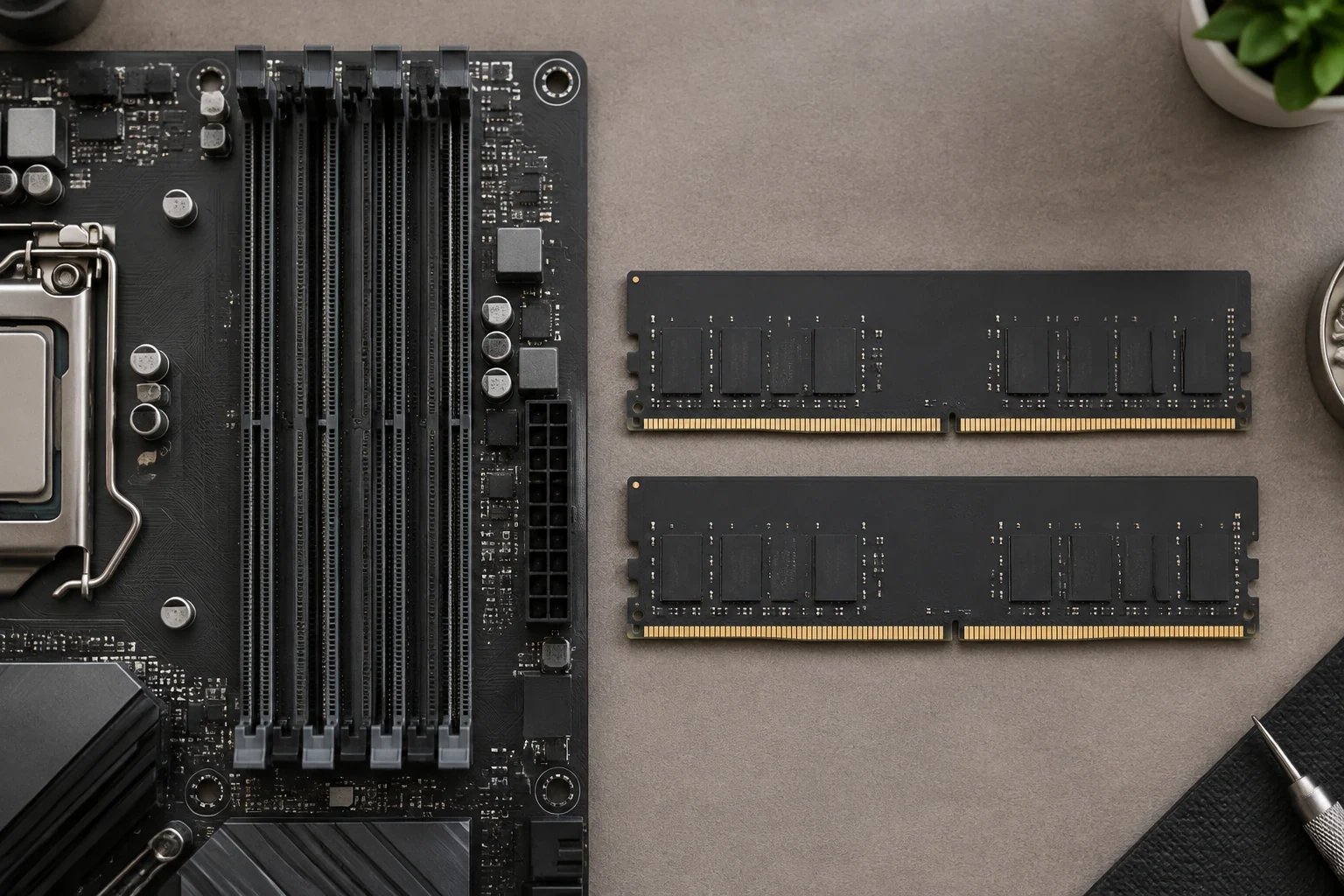
A two-slot board cannot take the four-module route. A four-slot board offers the physical positions, but their presence alone does not validate every memory density, rank arrangement, or overclocking profile. Check the board's support information with your exact CPU and BIOS.
Write down what is installed now. Moving from 2 × 16GB to a 2 × 32GB kit means replacing the existing pair; adding another 2 × 16GB kit means using four modules from two separate kits. Those are different purchases even though both total 64GB.
Four Sticks Do Not Create Four Memory Channels
On a dual-channel platform with four slots, four modules generally populate two DIMMs per channel. Two modules can populate one DIMM in each channel. The channel count comes from the platform, not the number of occupied sockets.
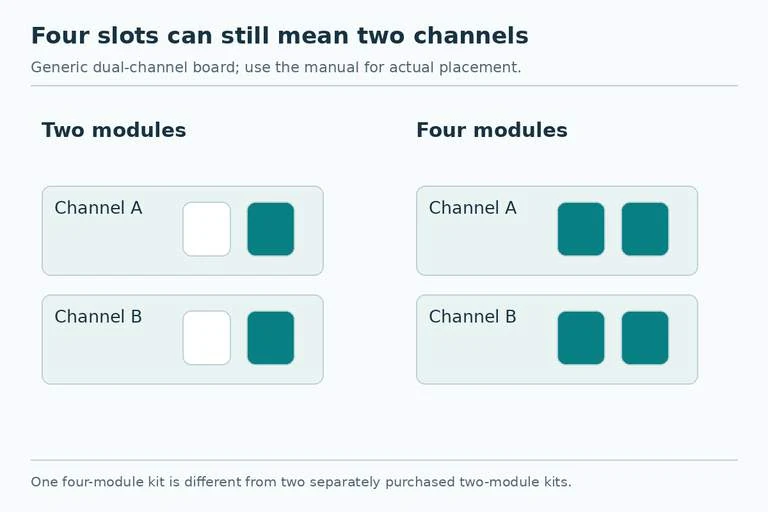
This matters because an attractive fully populated board is not automatically a faster memory configuration. It may provide the required capacity while placing more load on the controller. Conversely, a true quad-channel workstation platform is a different case and must be planned against its own CPU and motherboard documentation.
Module count and rank count are also different. A single module may have one or more ranks, and chips visible on both sides of a module are not a reliable standalone way to determine its rank organization. Use the kit's technical information and compatibility entries rather than inferring the electrical configuration from a product photograph.
Read the CPU’s Population-dependent Speed Limits
CORSAIR's discussion uses the Ryzen 7 9800X3D as a concrete example. Its reproduced supported-speed table lists DDR5-5600 for two modules, whether single-rank or dual-rank, and DDR5-3600 for four modules in either listed rank configuration. Those are specific supported configurations, not universal speed limits for all processors.
That example explains why “I will add another pair and keep the same profile” is not a safe purchasing assumption. A memory kit's advertised XMP or EXPO rating and the CPU's standard supported configuration describe different things. A successful overclock on two modules is not proof that four modules will run at that setting.
For your own system, check the CPU's population table, the motherboard's supported memory list, and the exact kit's profile. Treat any higher profile as conditional on that configuration rather than as a guaranteed consequence of buying the same nominal speed.
There is no need to predict a particular performance loss without measurements. First answer the purchase question: if the four-module arrangement requires a lower supported speed, would you still choose it for the capacity or cost? If not, the larger two-stick kit deserves priority.
Distinguish a Four-module Kit from Two Separate Pairs
One four-module kit is sold as a set. Two separately purchased two-module kits remain separate sets, even when the labels share a part number, capacity, timing specification, and voltage. CORSAIR recommends using modules from the same kit and warns that mixing can produce instability.
The version number adds identification detail but does not turn separate kits into one validated set. CORSAIR explains that the same part number can be sold in multiple revisions, and the version may not be known before purchase. Do not make an upgrade depend on obtaining a particular revision unless the seller can actually identify it. Even then, a matching revision is not a stability guarantee.
If you already own a pair and want to minimize immediate spending, compare the real cost of a second pair with a replacement kit after any resale or reuse of the old memory. Include the possibility of reduced speed and troubleshooting in that decision. A lower checkout price is useful only if the resulting configuration meets your requirements.
Check the Support List in the Right Configuration
Search the motherboard's memory support information for the complete kit part number, intended capacity, and module population. An entry for a two-module configuration is not automatic evidence for four installed modules. Pay attention to CPU-generation categories and any BIOS requirements relevant to high-density DDR5 modules.
Absence from a support list is not itself proof that a kit cannot work, but a matching tested configuration gives you stronger purchase evidence than a general brand recommendation. If a necessary detail is unclear, ask the motherboard or memory maker about the exact proposed configuration before ordering.
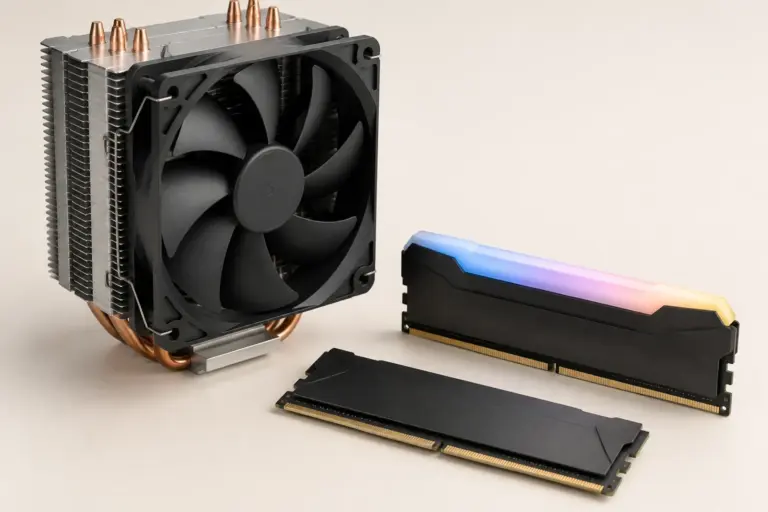
Also check the physical assembly. Larger capacity does not tell you the heat-spreader height. If a tower cooler overlaps the DIMMs, confirm the selected kit's full height and any required fan adjustment. The two-stick electrical route still needs to fit mechanically.
Install According to the Board, Then Validate the Result
For two modules, use the slots specified in your motherboard manual. A2 and B2 are common recommendations, but the manual for your exact board controls the placement. Do not select adjacent slots simply because they are easiest to reach.
Follow the board's instructions for installation, initial boot, and memory settings. Confirm the system recognizes the full capacity before evaluating the intended profile. Then run suitable memory stability checks and the workload that motivated the upgrade. If the configuration fails, return to a supported baseline and troubleshoot rather than treating the presence of all modules in firmware as proof of stability.
Choose 2 × 32GB or supported 2 × 48GB when you want the capacity with fewer modules and a clean replacement kit. Choose a supported four-module set when its tradeoffs fit your needs. Adding another separate pair is the route with an extra uncertainty to resolve; plan it as such rather than assuming the second box repeats the first box's result.