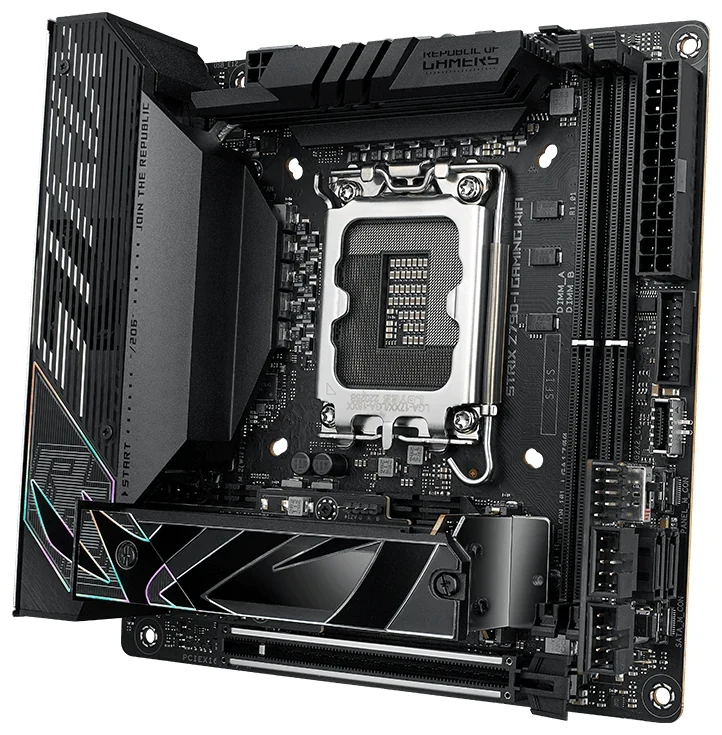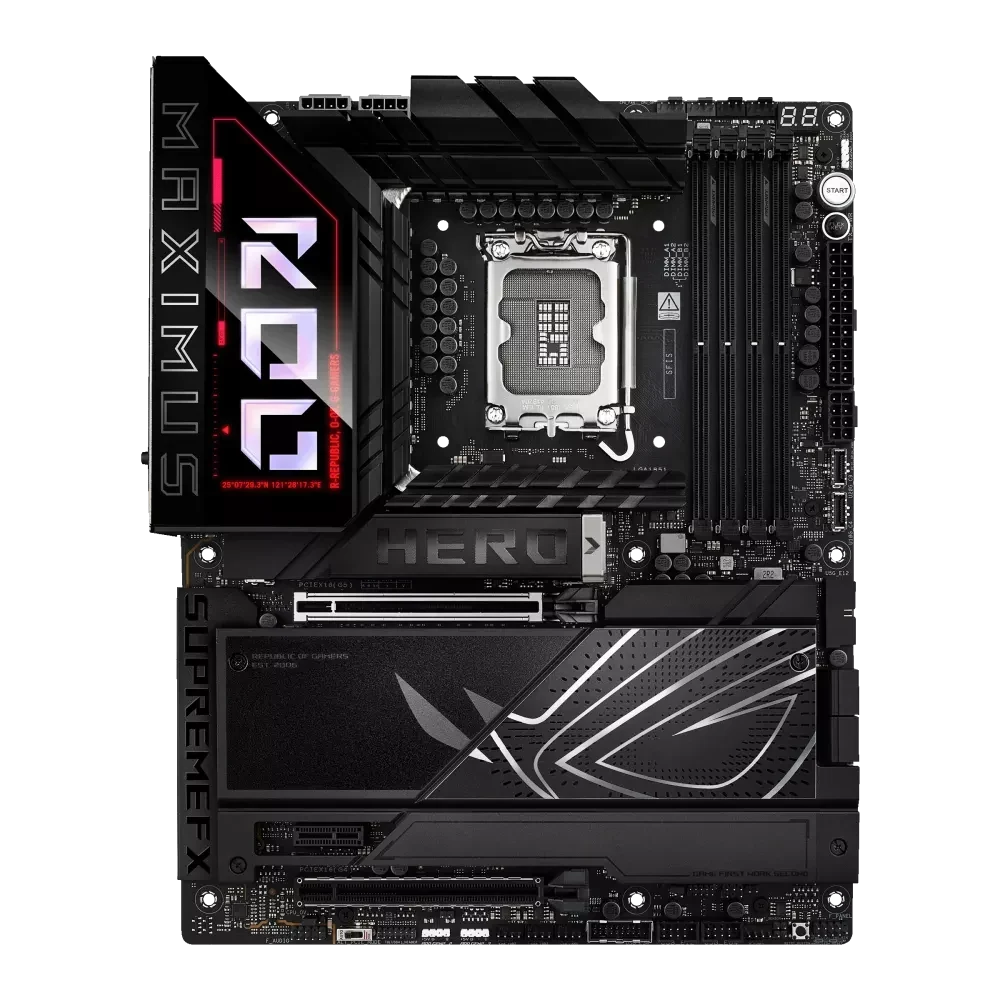
Choose the ROG Maximus Z890 Hero's storage layout when three onboard Gen5 SSD connections are the priority; choose ProArt Z890-CREATOR WIFI's layout when a second CPU-connected expansion slot or onboard Thunderbolt 5 is essential. Hero has six M.2 positions, including three Gen5 positions. ProArt has five, with only M.2_1 offering Gen5.
Those priorities have costs. Using Hero's M.2_3 or M.2_4 reduces the main GPU slot to x8. On ProArt, operating M.2_5 disables the chipset-connected x4 expansion slot.
Start with the equipment you actually intend to retain: the GPU, another expansion card, each SSD and the external devices. These two Intel LGA1851 boards offer different complete allocations, rather than one interchangeable collection of fast-looking sockets.
A Second Long Slot Is Not Always a Second CPU Slot
Hero has one CPU-connected Gen5 x16 expansion slot. Its other long slot is chipset Gen4 x4, alongside a Gen4 x1 slot. ProArt instead has two CPU-connected Gen5 long slots, supporting x16 for a single slot or x8/x8 for two; it also has a chipset Gen4 x4 long slot.
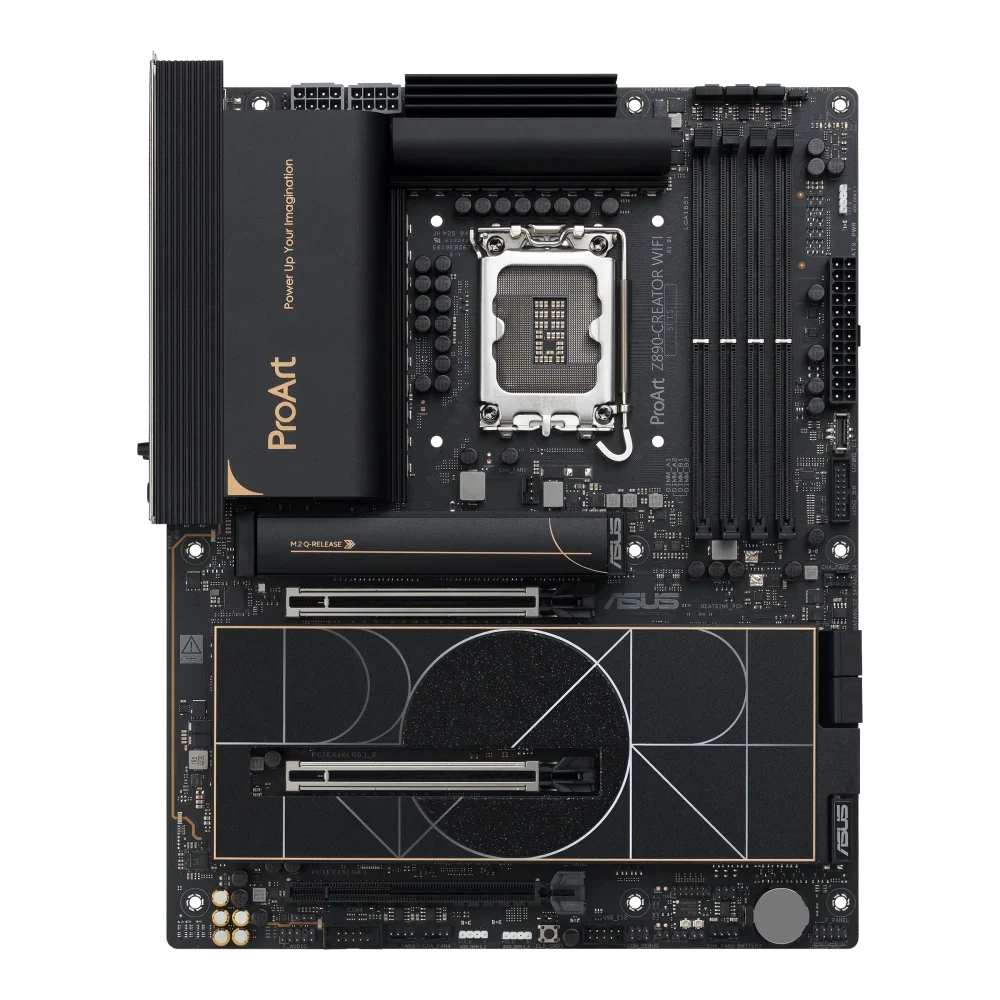
If your retained card needs an x8 CPU-connected position alongside the GPU, ProArt provides the relevant two-slot arrangement. Hero's chipset x4 position cannot meet that stated x8 requirement merely because its connector is physically long.
Hero's listed x8/x4/x4 mode for the primary CPU slot is also not an additional physical CPU expansion slot. Do not read bifurcation notation as though it creates a second motherboard connector for an ordinary card. The board's actual destinations still determine where each device connects.
If the retained device only needs a suitable x4 connection, Hero's chipset slot may serve the plan. On ProArt, that same class of device could use the chipset slot only if the storage allocation leaves it available. Choose the position from the card's documented link and operating requirements, then check whether the GPU cooler leaves enough physical space.
Hero Can Connect Three Gen5 SSDs, with the GPU at x8
The Hero storage map separates CPU connections from chipset connections. All six published M.2 entries below use PCIe; the length lists describe the supported module formats.
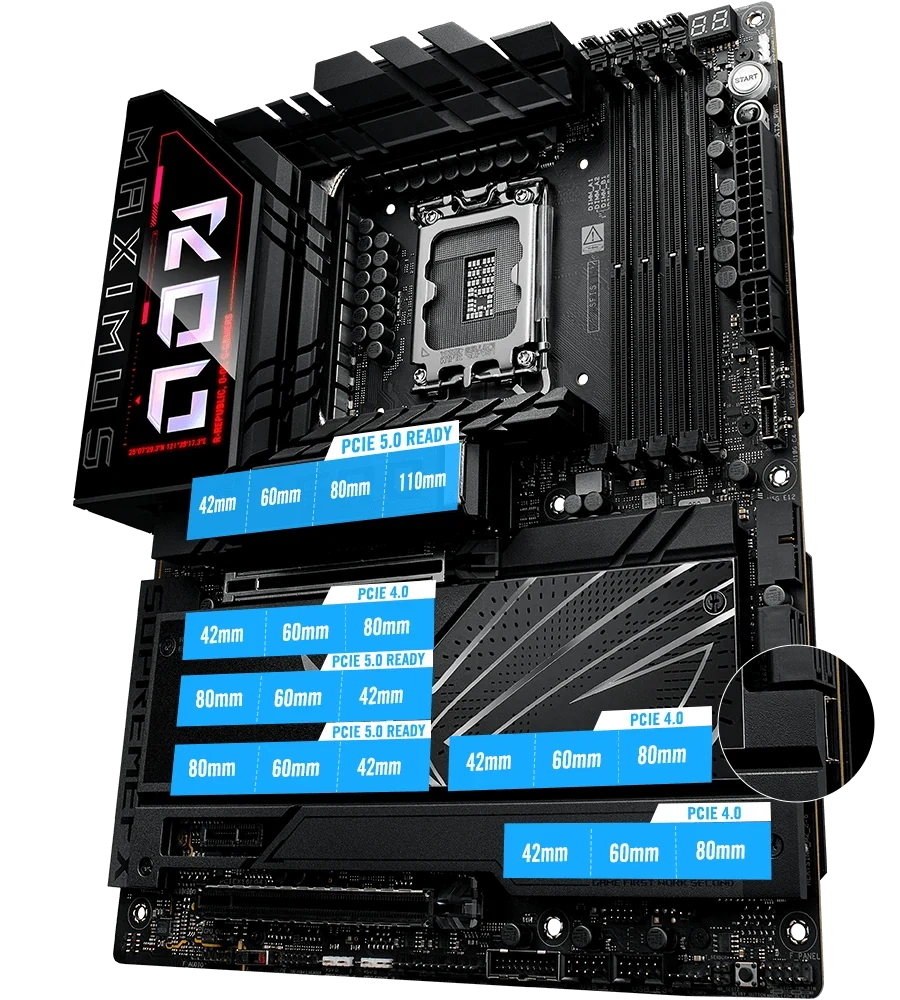
| Hero position | Connection | Supported lengths |
|---|---|---|
| M.2_1 | CPU Gen5 x4 | 2242, 2260, 2280, 22110 |
| M.2_2 | CPU Gen4 x4 | 2242, 2260, 2280 |
| M.2_3 | CPU Gen5 x4 | 2242, 2260, 2280 |
| M.2_4 | CPU Gen5 x4 | 2242, 2260, 2280 |
| M.2_5 | Chipset Gen4 x4 | 2242, 2260, 2280 |
| M.2_6 | Chipset Gen4 x4 | 2242, 2260, 2280 |
Enabling either M.2_3 or M.2_4 makes the primary PCIEX16(G5) slot operate at x8. The manufacturer view places the supported SSD positions on the real board, making the two additional Gen5 destinations easier to distinguish from the chipset positions.
For example, three retained 2280 Gen5 SSDs can be assigned to M.2_1, M.2_3 and M.2_4 if running all three on Gen5 connections matters more than preserving the GPU's x16 link. That describes the allocation; it does not quantify a GPU performance difference for your applications.
If preserving the GPU's x16 connection is a firm requirement, leave M.2_3 and M.2_4 out of the active storage plan. M.2_1, M.2_2, M.2_5 and M.2_6 remain the positions to consider for that inventory. Owning several Gen5-capable drives does not oblige you to use every one at Gen5 if another requirement is more valuable.
Use the board's printed M.2 labels during installation rather than assigning slot numbers by counting downward through the photograph.
A retained 22110 module needs special attention: among these entries, M.2_1 is the position listing that length. Record the actual drive formats before assigning by capacity alone. A large-capacity 2280 drive and a 22110 drive do not create the same physical allocation.
ProArt Trades Extra Onboard Gen5 Positions for a Different Card Layout
ProArt's first M.2 connection is Gen5; the other four are Gen4. Its fifth position also supports SATA M.2, but shares resources with the chipset expansion slot.
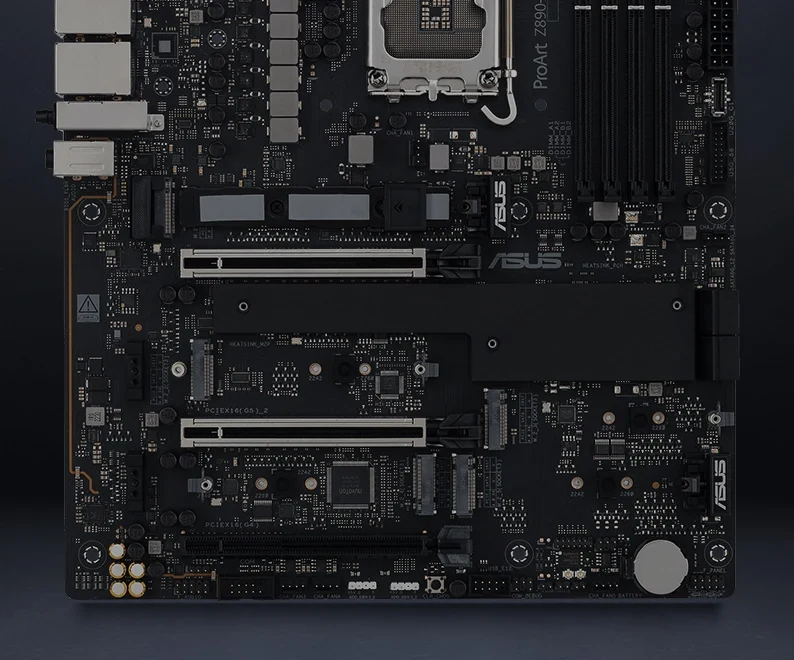
| ProArt position | Connection and protocol | Supported lengths |
|---|---|---|
| M.2_1 | CPU Gen5 x4, PCIe | 2242, 2260, 2280, 22110 |
| M.2_2 | CPU Gen4 x4, PCIe | 2242, 2260, 2280 |
| M.2_3 | Chipset Gen4 x4, PCIe | 2242, 2260, 2280 |
| M.2_4 | Chipset Gen4 x4, PCIe | 2242, 2260, 2280 |
| M.2_5 | Chipset Gen4 x4, PCIe; also SATA | 2242, 2260, 2280 |
When M.2_5 operates, the chipset PCIe 4.0 x16 connector—electrically x4—is disabled. That footnote concerns the chipset slot, not ProArt's second CPU-connected slot.
This creates two different five-drive questions. A GPU plus a card allocated to the second CPU slot can use the documented x8/x8 arrangement while the fifth SSD occupies M.2_5 and the chipset slot is unavailable. A plan that places the retained card specifically in the chipset x4 slot cannot also treat M.2_5 as an independent fifth drive position.
If you intend to move that card to the second CPU slot, verify its requirements and the physical placement first. The move changes the GPU arrangement to x8/x8 and may change clearance around a thick cooler. It should be a deliberate revised allocation, not an assumed cure for the sharing conflict.
A retained SATA M.2 module points to ProArt's M.2_5, with the same expansion-slot consequence. For ordinary cable-connected SATA drives, both boards list four SATA ports. Hero additionally lists SlimSAS expansion through a separately purchased adapter cable; an exact suitable adapter is not established here, so do not count it as ready-to-connect extra storage.
Thunderbolt 5 Needs the Correct Operating System and Display Path
ProArt has two rear Thunderbolt 5 ports and a separate Thunderbolt 4/USB4 port; Hero has two rear Thunderbolt 4 ports. ASUS limits ProArt's Thunderbolt 5 features to Windows 11.
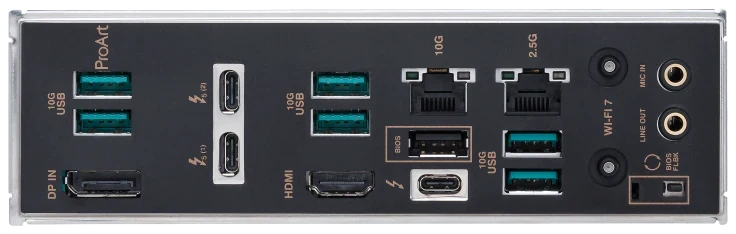
Identify the external device that makes TB5 necessary. A dock, storage enclosure or display must be matched to its actual connection requirements and your operating system. Buying the port name alone does not establish the performance of the complete device-and-cable path.
For discrete-GPU video through ProArt's TB5 connection, ASUS describes connecting the graphics card's DisplayPort output to the motherboard's DP IN, then carrying video through TB5 to the display. DP IN is an input; it is separate from the motherboard's HDMI output.
The current rear-panel photograph helps identify that input and the different Type-C positions. Plan the required DisplayPort connection and a video-capable cable for the display path. Confirm what is supplied with the actual package rather than assuming the DP-in cable is included.
The display footnotes matter when retaining several monitors. If ProArt's TB5 connection outputs two displays through integrated graphics, the motherboard's TB4 port cannot output another display. Hero has a different restriction: in DP Alt mode, only one Type-C port supports UHBR20 at a time.
These conditions prevent adding each connector's advertised maximum into one guaranteed desktop layout. Write down each monitor, its required mode and cable, which graphics source will drive it, and the exact connector used. For demanding resolution or refresh-rate combinations, verify the relevant DSC and device support rather than assuming every printed maximum applies simultaneously.
Match the Case-front Connections and Wired Network Too
The external-device plan extends beyond Thunderbolt. The following published connections can change whether existing case cables and network equipment remain useful.
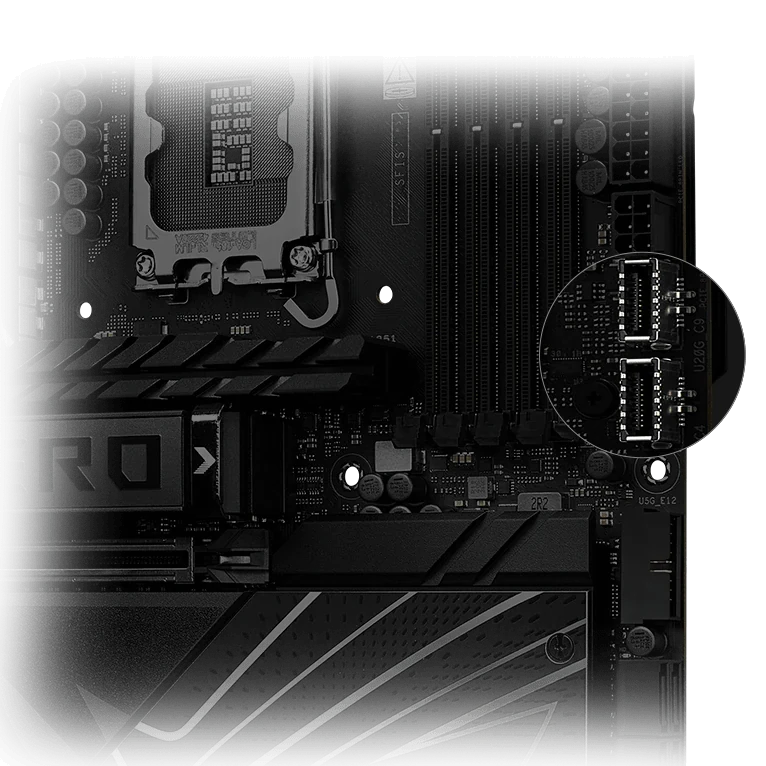
| Connection | Z890 Hero | ProArt Z890-CREATOR WIFI |
|---|---|---|
| Rear Thunderbolt | Two TB4 | Two TB5; one TB4 |
| Other rear USB | Four 10Gbps A, one 10Gbps C; four 5Gbps A | Six 10Gbps A; one USB 2.0 A |
| Front Type-C connectors | One 20Gbps; one 10Gbps | One 20Gbps |
| Front Type-A header capacity | Four 5Gbps ports | Two 5Gbps ports |
| Wired Ethernet | 5Gb plus 2.5Gb | 10Gb plus 2.5Gb |
Hero's highlighted detail shows two internal Type-C connector positions. These are destinations for case-front wiring, not two more rear sockets. If the retained case has two front Type-C leads, assign both explicitly. ProArt's single native front Type-C connection cannot be counted twice to make that case inventory disappear.
Also compare actual front Type-A leads with header capacity. Header-supported port counts describe what the motherboard can connect, not how many sockets the case necessarily supplies. A suitable case cable and port are part of the data path, particularly when the 20Gbps front connection is a purchase requirement.
ProArt's onboard 10Gb Ethernet may be useful if your retained network and storage arrangement needs that connection. Hero's faster onboard wired interface is 5Gb. Neither number establishes end-to-end file-transfer speed: the other network devices, storage and workload still matter. Do not buy replacement network equipment merely to populate the highest advertised rate.
Choose a Complete Allocation, Not a Winner by Feature Count
For three onboard Gen5 SSD connections and a retained card that fits the chipset x4 role, Hero is the relevant starting point. Assign the three drives to M.2_1, M.2_3 and M.2_4, accept the documented GPU x8 arrangement, and verify the card's physical clearance.
For a second CPU-connected card position and TB5 peripherals, start with ProArt. Budget the GPU and second card at x8/x8, then assign the drives knowing that only M.2_1 supplies an onboard Gen5 connection. If five SSDs occupy all M.2 positions, keep the chipset expansion slot out of the usable-card inventory.
If all three Gen5 SSD connections, a separate CPU-connected second card and onboard TB5 are firm requirements, neither board provides that complete native combination. Keep that result visible instead of treating an unspecified adapter as though it were already verified.
Your final purchase sheet should identify each card's slot and link, every SSD's position and protocol, each case-front lead and the required external-device paths. That preserves the useful equipment you own while making the actual compromises reviewable before you buy.