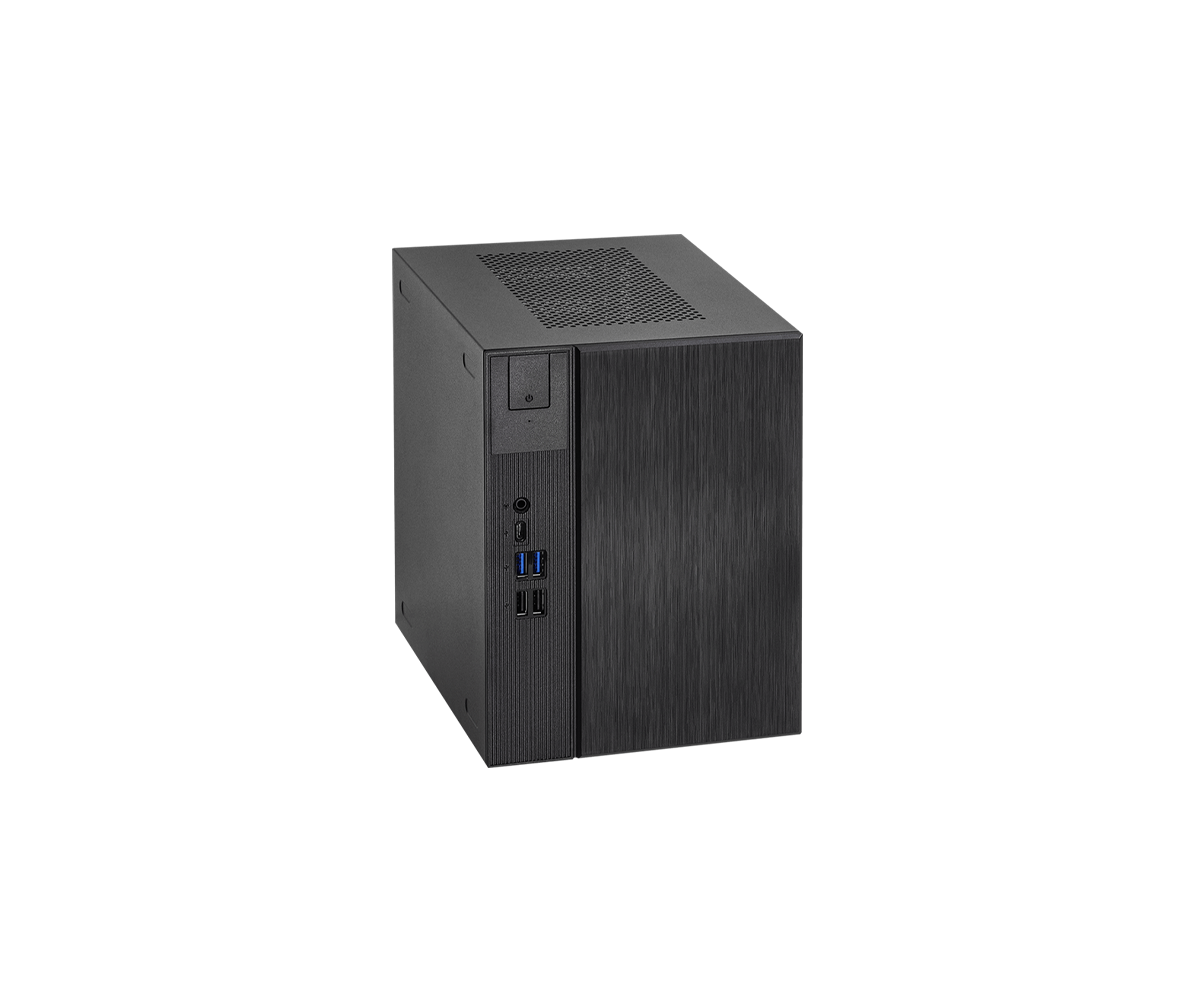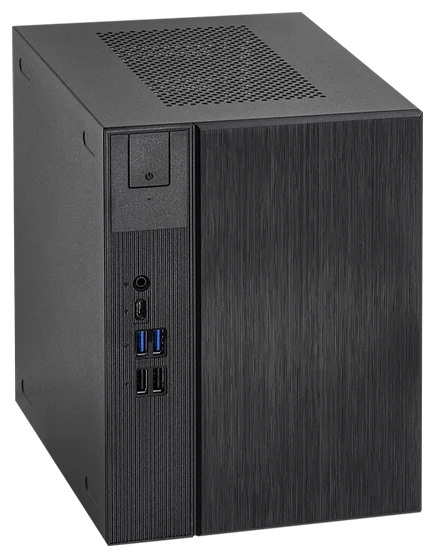
The DeskMeet X300 and B660 can preserve more of an older desktop than a miniature PC built around laptop memory, but the right choice starts with the processor you already own. X300 is the AM4 route; B660 is the LGA1700 route. Both provide four desktop DDR4 slots, a short graphics-card position and a supplied 500W power supply. Keeping those parts together requires a drive-placement plan as well as a compatibility list.
A particularly important limit sits inside the case: an alternative hard-drive position occupies the graphics-card area. The installation guide explicitly excludes a graphics card when a 3.5-inch drive is mounted there. A second drive location is therefore not automatically a second location available alongside your GPU.
Choose the Barebones Around Your Existing CPU and DDR4
These are two platform choices inside a shared compact enclosure. Buying the other variant does not create a way to transplant the processor across sockets.
| Retained component | DeskMeet X300 | DeskMeet B660 |
|---|---|---|
| Processor platform | Supported AM4 Ryzen families, up to 65W | Supported 12th-, 13th- and 14th-generation LGA1700 processors |
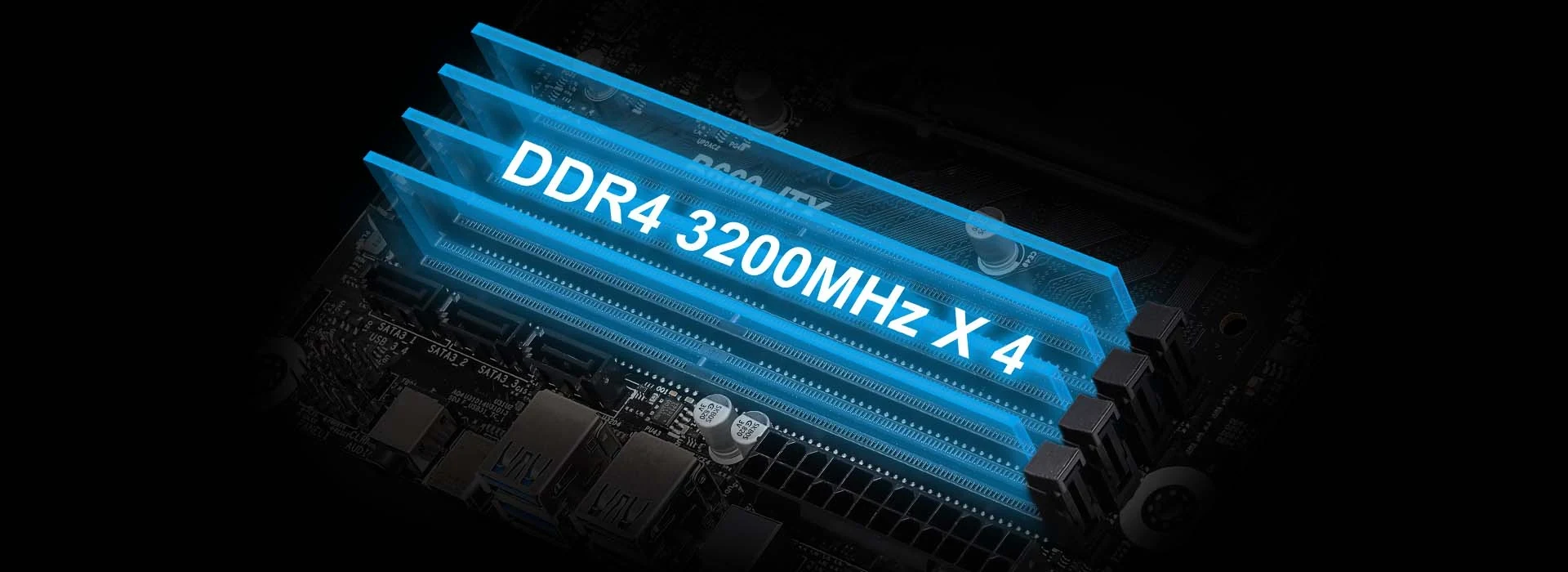
| Desktop memory | Four DDR4 DIMM slots, up to 128GB | Four non-ECC unbuffered DDR4 DIMM slots, up to 128GB |
| Published memory speeds | CPU-dependent; the specification lists 3200MHz for Ryzen 4000/5000 and 2933MHz for Ryzen 2000/3000 | DDR4-3200 and lower listed speeds; native 3200 support |
| CPU-cooler height | 54mm maximum, AM4 mounting | 54mm maximum, Intel mounting |
The table is a starting filter. X300's published processor families include Ryzen 2000, 3000, 4000G, 5000 and 5000G, but “AM4” alone does not establish support for your exact chip. For either machine, match the complete CPU model against its support list and the BIOS installed in the unit you will actually receive. Do this before dismantling the working desktop. A processor family printed on a current page does not establish that an older unit already has the necessary firmware.
B660's current official specification includes 13th- and 14th-generation support; an early review mentioning only 12th generation is not the complete current platform description. However, ASRock now marks DeskMeet B660 discontinued in October 2026. Treat it as an existing-machine or remaining-inventory migration option. Establish the actual unit, BIOS and included parts rather than assuming that a current specification means new retail stock is available.
Four slots make a four-module desktop kit worth considering. They do not accept DDR5 or laptop SO-DIMMs, and 128GB is the system ceiling rather than permission to use any four modules. Check the actual memory type, total capacity and CPU-dependent speed before counting the kit as retained. X300 also lists conditional ECC support; that is not a blanket promise for every ECC module or every Ryzen APU.
Measure the Cooler and the Complete Graphics Card
A tower cooler is not part of the easy transplant. Both machines specify a 54mm CPU-cooler limit, so verify the assembled height and the correct socket mounting hardware. Check the cooler's surrounding clearance with the memory installed, too. Meeting the height number alone does not demonstrate that a particular cooler fits around your four DIMMs.
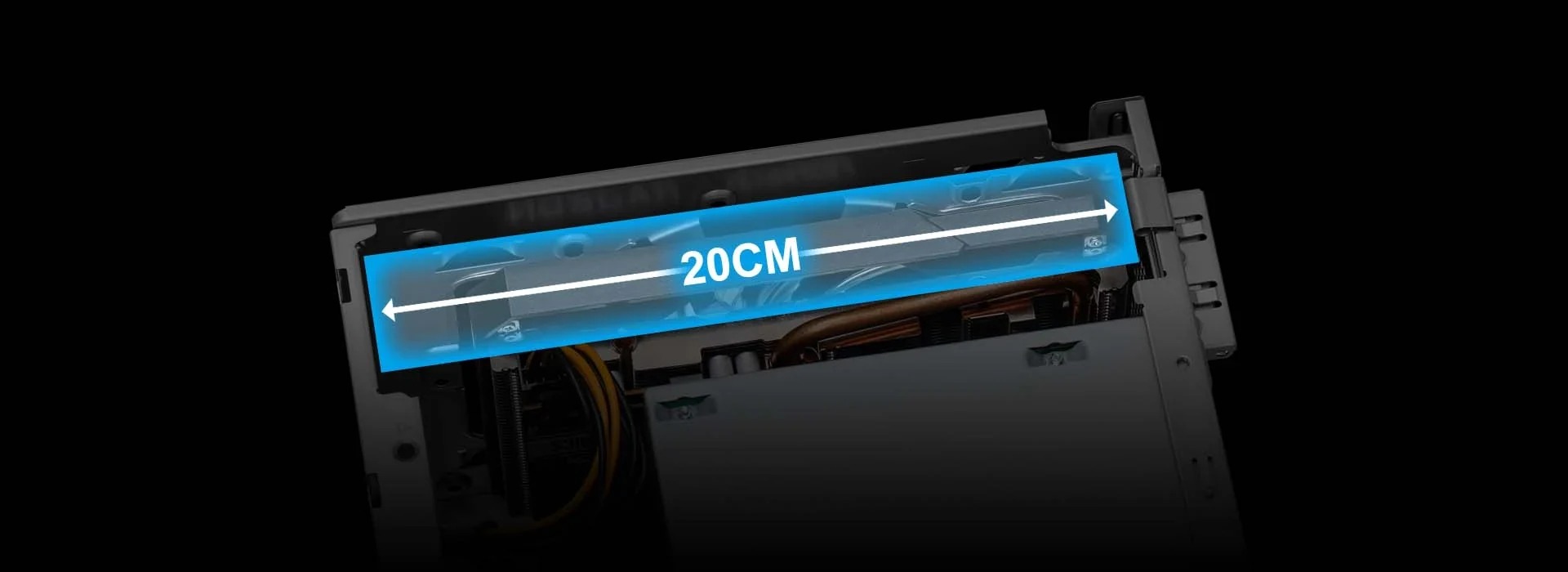
For the graphics card, ASRock gives the same dimensional envelope for both variants: 200mm long, 125mm high and 38mm thick, with a separate 6mm allowance for the backplate. The measurement references matter: height is measured from the PCIe gold fingers, and thickness from the rear of the graphics-card PCB. Compare those references with the manufacturer's drawing for your exact card rather than substituting its retail box dimensions.
“Dual slot” is useful shorthand, but it cannot replace those measurements. Include the actual shroud, backplate and power-plug arrangement in the fit check. A card whose body meets the envelope still needs a workable cable path and the drive layout described below.
X300 provides a PCIe 3.0 x16 graphics slot; B660 provides PCIe 4.0 x16. X300 additionally publishes support for a discrete card up to 200W with an eight-pin PCIe power connector. Do not transfer that statement into an unrestricted B660 card recommendation, or treat the supplied PSU's 500W rating as a 500W graphics-card budget. Both barebones use an original 80 Plus Bronze PSU with cables made for the enclosure. Retaining that complete supply and its leads is the straightforward starting point; replacing it is a separate mechanical and cooling decision.
Assign SSDs by Protocol Before Counting SATA Drives
The motherboard difference becomes clearer when you inventory the drives you want to keep. Write down each drive's protocol as well as its capacity: an M.2 shape does not tell you whether the drive uses SATA or PCIe.
| Storage connection | X300 | B660 |
|---|---|---|
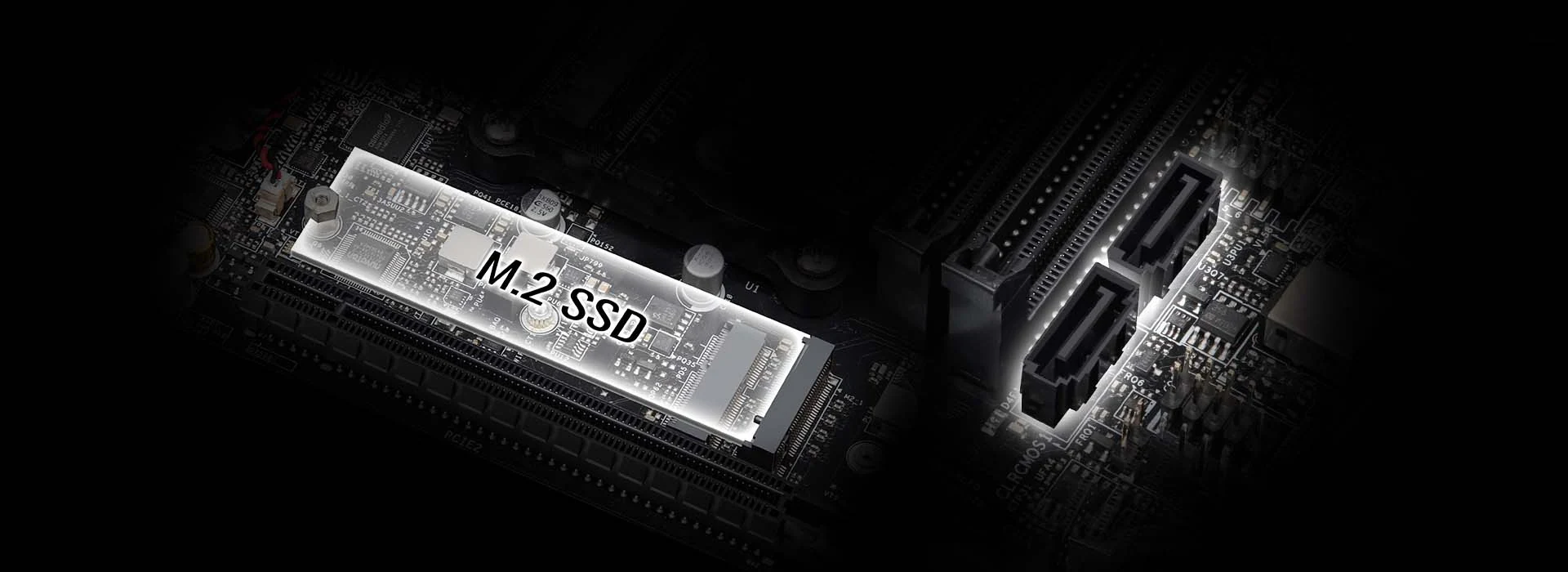
| First storage M.2 position | One 2280 PCIe Gen3 position | M2_1: 2280 PCIe Gen4 x4 or SATA |
| Second storage M.2 position | Not provided | M2_2: 2280 PCIe Gen4 x4 |
| Cabled SATA connections | Two SATA3 ports | Three SATA3 ports |
| Supplied SATA data cables | Two | Two; a third SATA device requires an additional data cable and SATA power Y-splitter |
These are connection provisions, not proof that every connected drive fits beside the graphics card. They also exclude the separate Key E wireless-module slot from the storage count.
On X300, the overview describes the Gen3 M.2 connection as x2/x4 while the formal specification lists x4. Without resolving the exact retained CPU configuration, do not build the purchase decision around guaranteed x4 operation. The dependable migration distinction is one published PCIe storage position and two cabled SATA ports. Its listed storage M.2 support does not establish SATA-M.2 compatibility.
Use B660’s Second M.2 Position and Budget the Third SATA Connection
B660 gives an existing SATA M.2 drive a specific home in M2_1; M2_2 is the other PCIe position. This can change whether you retain an older SSD or need another cabled mounting location. For example, two existing PCIe 2280 SSDs have two published motherboard positions on B660, whereas the same pair cannot both occupy onboard storage M.2 positions on X300.
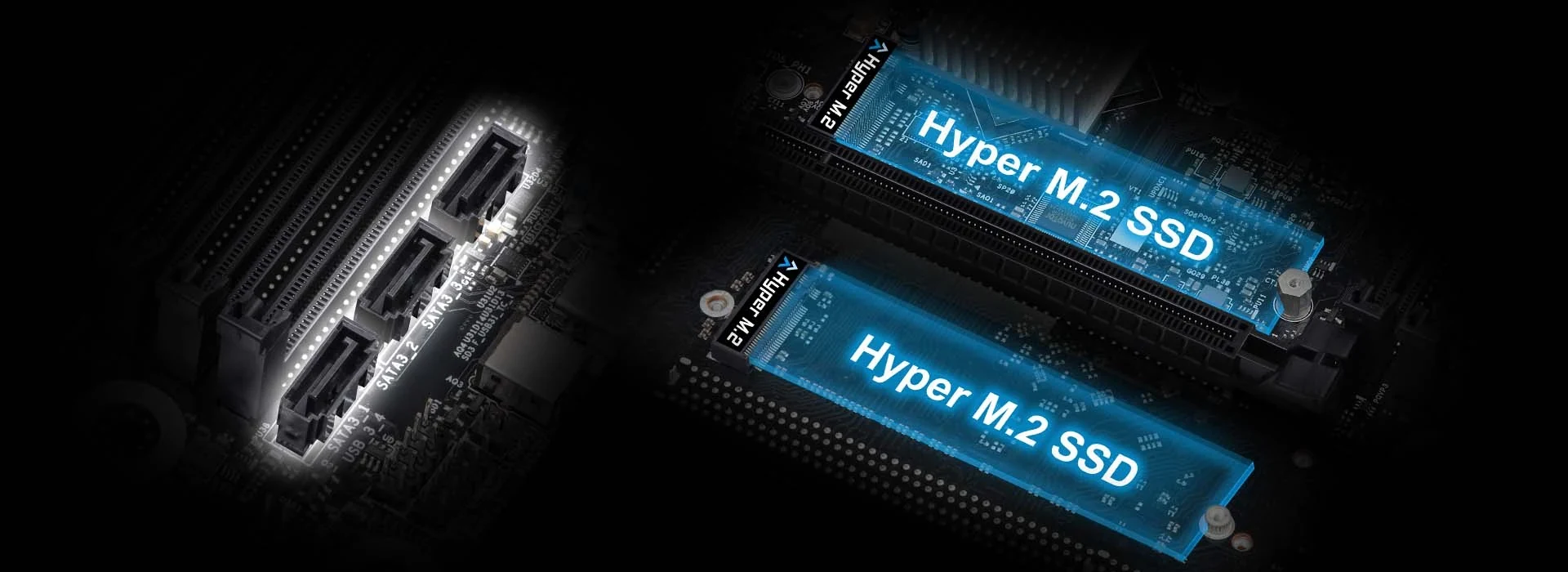
For a third cabled SATA drive on B660, budget both missing connections: the extra data lead and the SATA power Y-splitter specified by ASRock. Counting three motherboard ports while finding only two data cables in the package leaves an incomplete migration. The additional wiring still needs a physical route after you decide where each drive will sit.
Preserve the GPU by Keeping Its Drive Area Clear
The original installation panels distinguish the drive mounting on the side frame from alternative mounting in the graphics-card area. That distinction answers the common “Can I keep my mechanical disks?” question more usefully than the headline storage maximum.
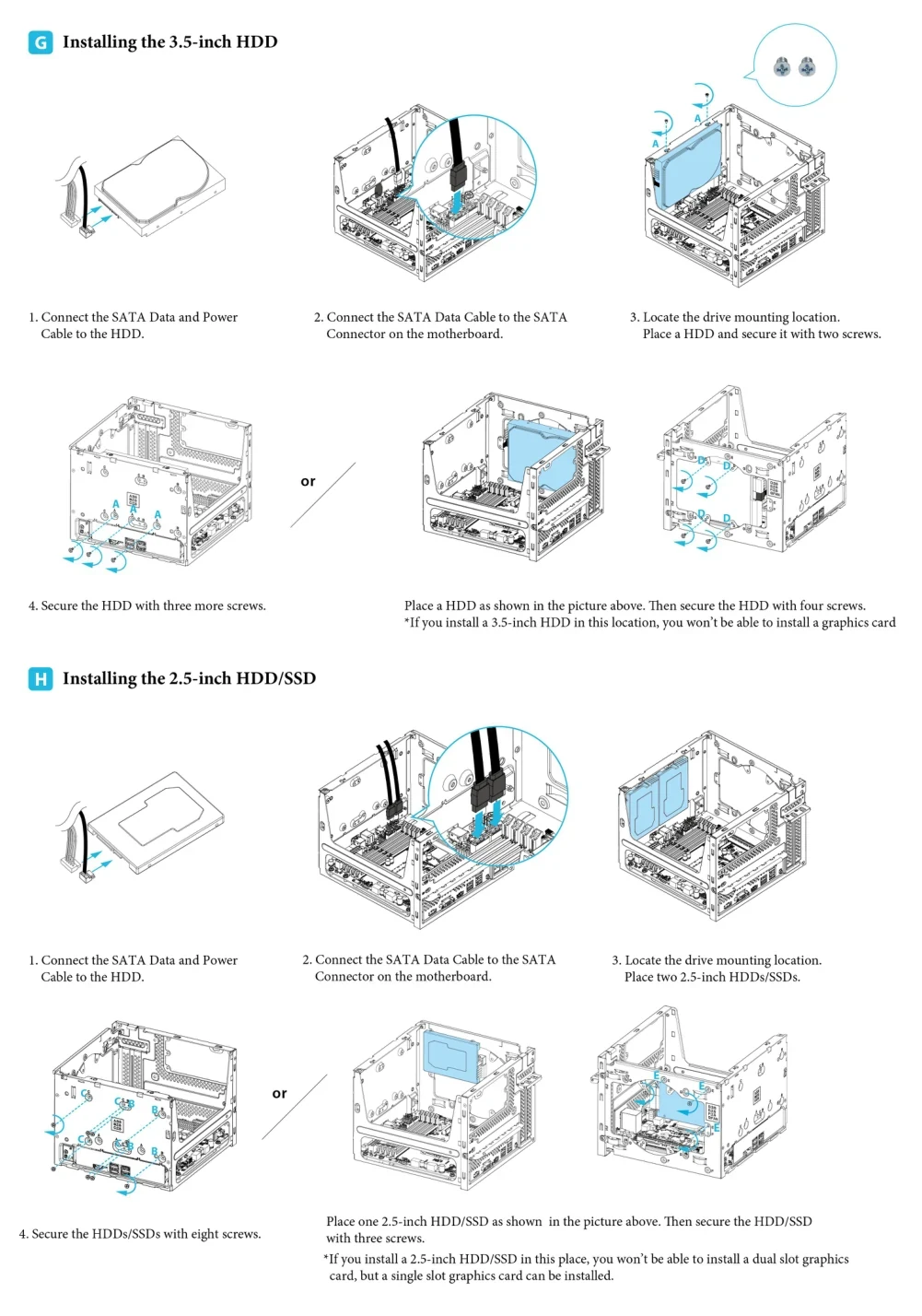
In the alternative graphics-card-area position, the guide states that installing a 3.5-inch HDD prevents installing a graphics card. Its alternative 2.5-inch arrangement also has a restriction: a dual-slot graphics card cannot be installed there with the drives, although a single-slot card can. These conditions apply to the illustrated area; they do not mean that every drive anywhere in the enclosure excludes a GPU.
Start the layout with the dual-slot card reserved, then assign the mechanical disk to another documented mounting position. Check the disk's mounting holes, connectors and cable exit against the actual frame. The published ability to accommodate two 3.5-inch drives cannot be read as an unconditional promise of two such drives plus your dual-slot card.
For example, an AM4 migration with four DDR4 DIMMs, one supported PCIe M.2 SSD, one mechanical disk and a short dual-slot GPU is a sensible X300 inventory to investigate. The CPU and M.2 checks come first; the HDD must then have a usable position outside the reserved GPU area. This is a proposed allocation to verify against your parts, not a claim that every short card and hard disk combination has been installed together.
Give the Top Frame One Job
The top mounting area has four alternative uses: one 3.5-inch HDD, two 2.5-inch drives, a 120mm fan, or a single liquid-cooling radiator and fan assembly no thicker than 45mm combined. Those options compete for the same area. They are not four independent additions to the storage and cooling totals.
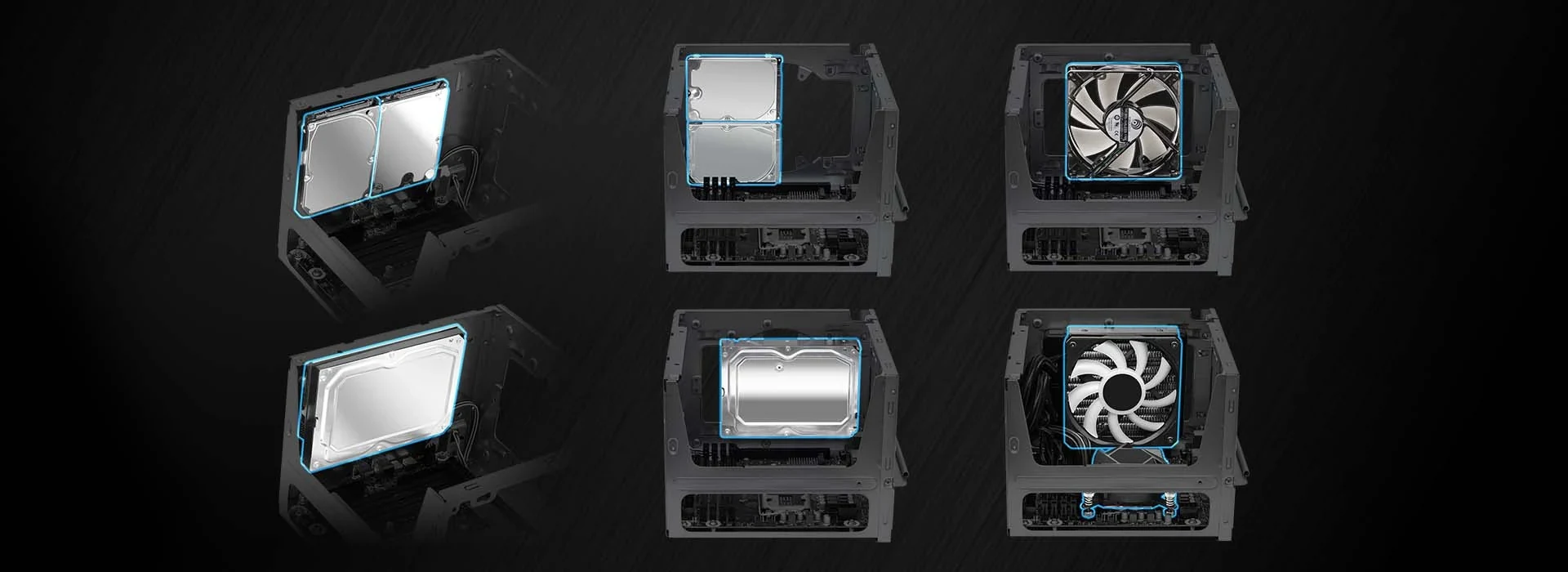
If your mechanical disk needs that frame, it is already spoken for when you consider the optional fan or radiator. Conversely, choosing the cooling assembly means finding a different valid disk arrangement. The 45mm limit is for radiator plus fan together; it is not permission for a 45mm radiator with a fan added afterward. Fittings, hoses and the rest of the installed hardware still need clearance.
For a LGA1700 migration with four compatible DDR4 modules, two PCIe 2280 SSDs, one HDD and a measured dual-slot GPU, B660 supplies the two onboard SSD positions. Assign the HDD outside the GPU area and reserve its SATA data and power connections; do not add the alternative GPU-area drive mount to that plan.
This is where a large drive inventory can defeat an otherwise attractive B660 plan. Two M.2 drives and three SATA devices are motherboard connection provisions. They do not establish five usable installed drives alongside your chosen GPU, cooler and top-frame option. Resolve the physical arrangement before buying the extra SATA wiring.
Buy Only the Missing Pieces of a Workable Migration
Make the final parts list around a specific complete barebones unit. Confirm its motherboard variant, CPU-supporting BIOS, original PSU and leads, drive screws and two SATA data cables. List the retained CPU, four memory modules, measured graphics card, cooler and every drive beside its assigned connection and mounting position.
Choose X300 when the compatible AM4 processor and DDR4 are the assets you are preserving and its single PCIe M.2 position is enough. Choose an appropriate existing B660 unit when the supported LGA1700 processor is central, or its second storage M.2 position and SATA-M.2 option solve your actual retained-drive problem. Neither choice rescues an unsupported CPU or a drive layout occupying the GPU space.
Buy the cooler, missing mounting hardware or additional SATA wiring only after that allocation works. If retaining all the mechanical disks requires surrendering the dual-slot GPU position, decide which retained part matters more before committing to the smaller enclosure.